Step 1
Getting started
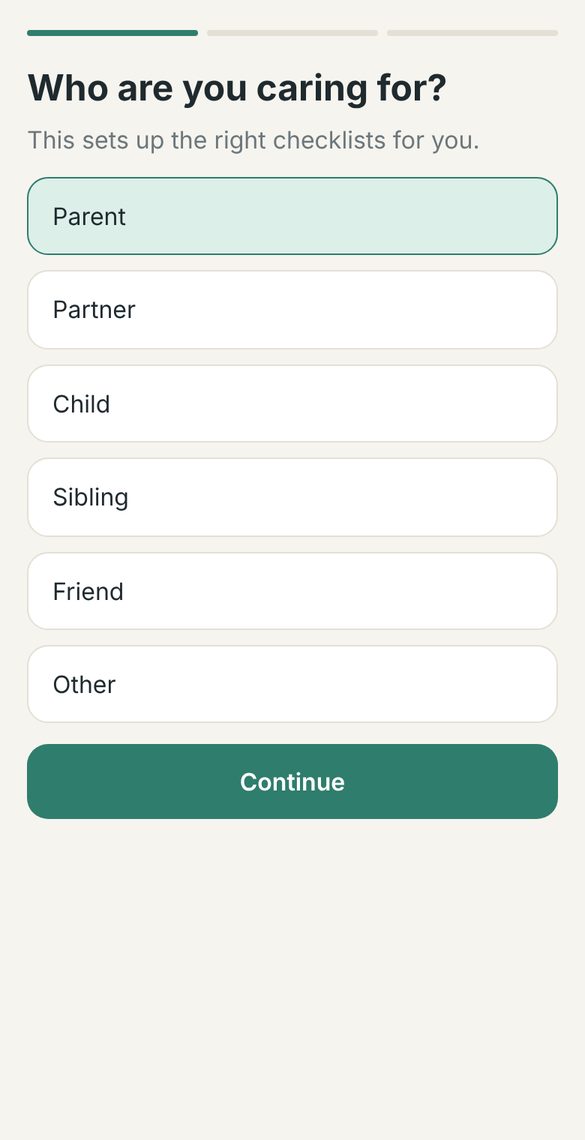
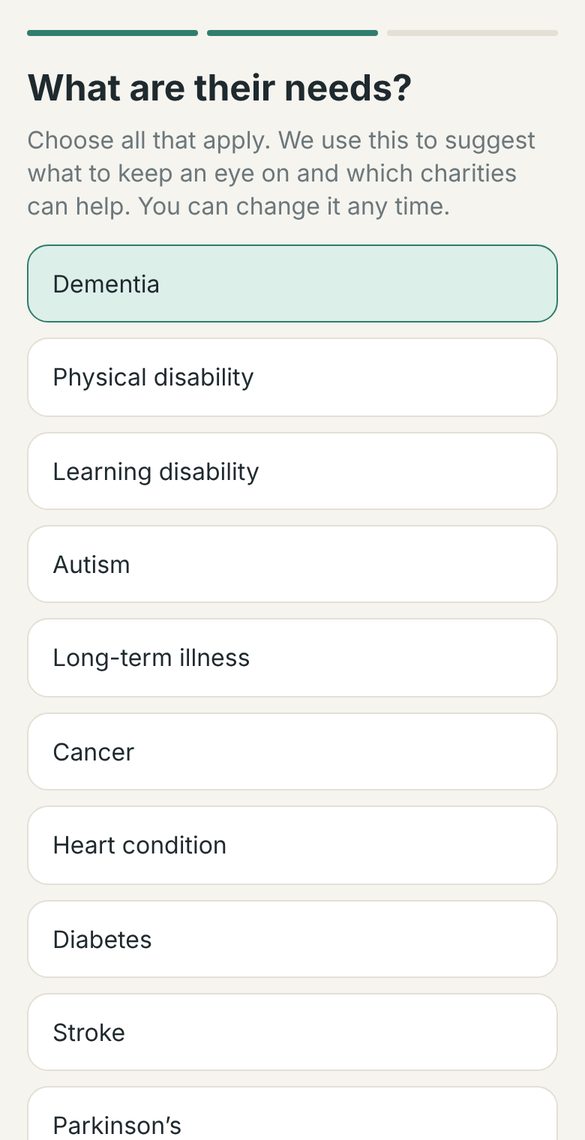
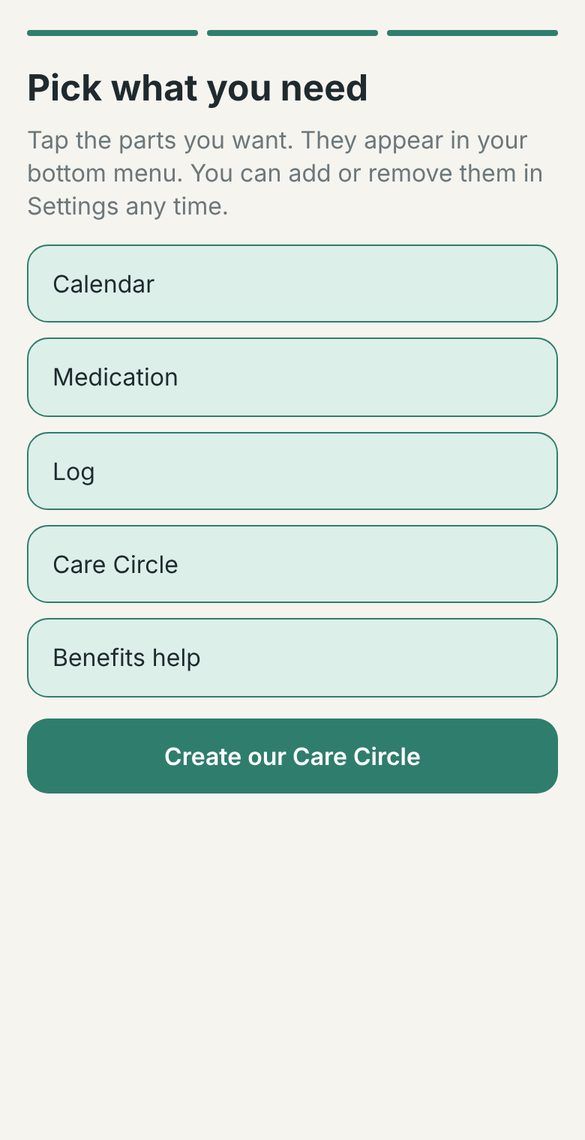
The first time you open Care Circle, it asks three quick questions so it can set things up for you. It takes about a minute.
- Choose who you are caring for, such as a parent, partner or child.
- Choose their needs. Pick as many as apply. Care Circle uses this to suggest charities and support that know the condition well.
- Pick the parts you want, like Medication, Calendar or Benefits help. They appear in the menu at the bottom of the screen.
- Tap Create our Care Circle.
Tip: You can change any of these later in Settings, so don't worry about getting it perfect.
Step 2
Your Today screen
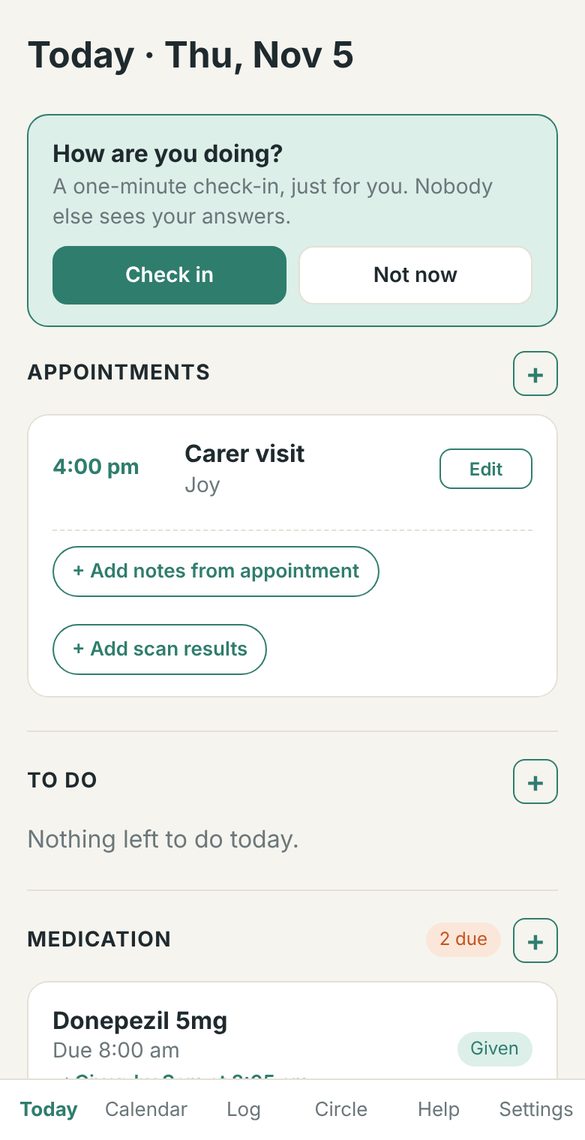
Today is the home screen. It shows everything happening today in one place: appointments, jobs to do and medication.
- Check Appointments for visits and appointments, with who is going.
- Tap + Add notes from appointment afterwards to write down what the doctor said, so everyone knows.
- Use the + button beside each heading to add something new.
- To do lists today's jobs, like ordering a prescription. Tick them off when they're done.
Tip: The How are you doing? card is a private check-in just for you. Nobody else in the circle sees your answers.
Step 3
Medication
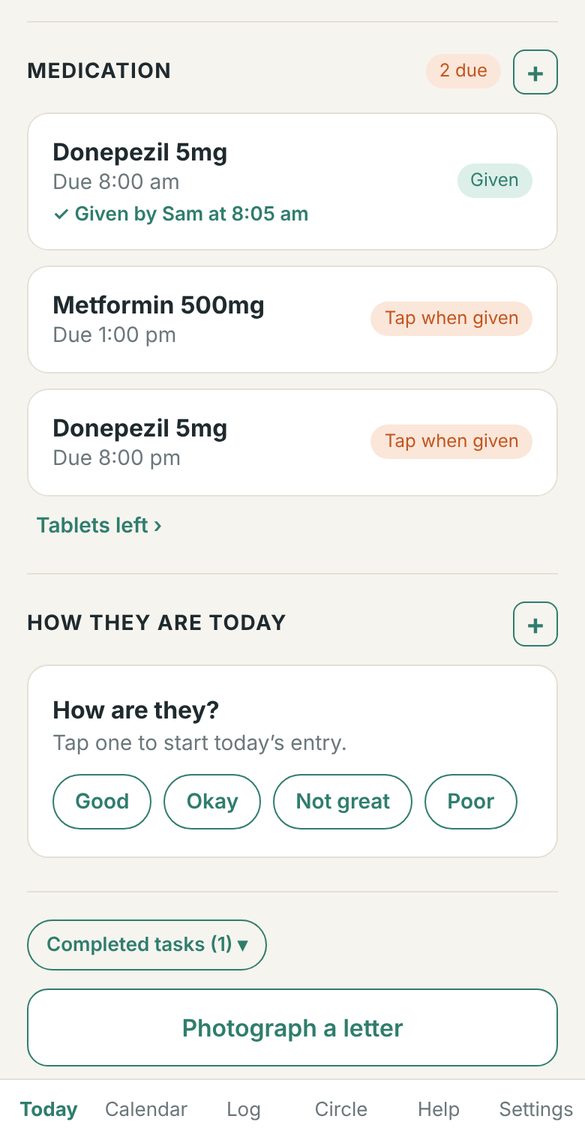
Every dose due today is listed with its time. When a dose is given, the whole circle can see who gave it and when, so nothing is missed or given twice.
- Tap a dose when it has been given. It changes to Given, with your name and the time.
- The badge at the top shows how many doses are still due.
- Tap + to add a new medication, with its dose and times.
- Use Tablets left to keep track of supplies, so you know when to reorder.
- Under How they are today, tap Good, Okay, Not great or Poor to keep a simple daily record.
Tip: Got a letter from the hospital or GP? Tap Photograph a letter to keep a copy with everything else.
Step 4
Calendar
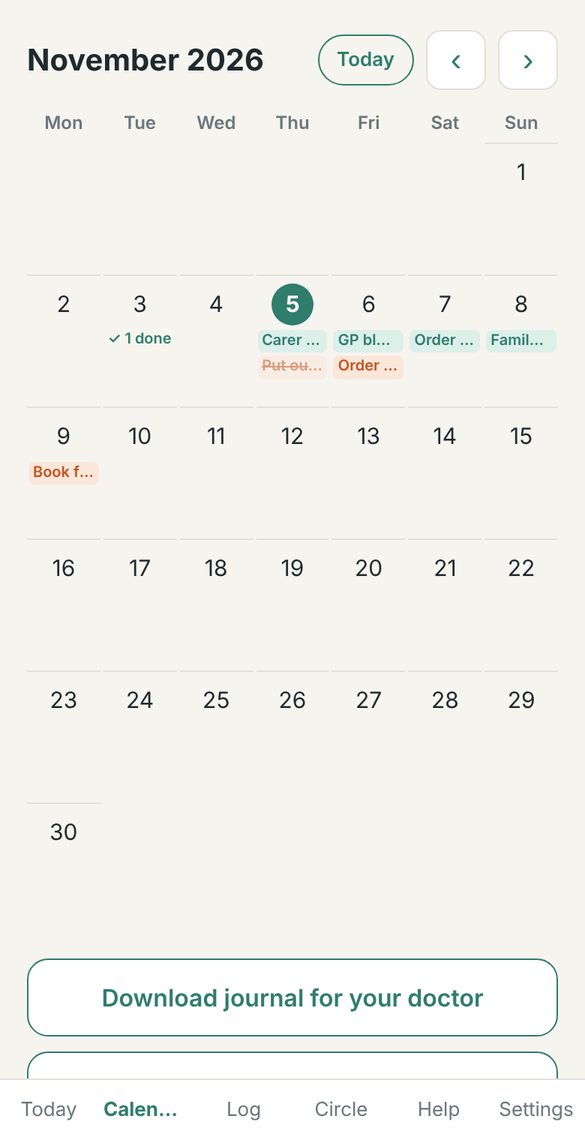
The calendar shows the whole month, with appointments and tasks on each day, so the family can plan visits and jobs together.
- Use the arrows to move between months, or tap Today to jump back.
- Tap any day to see what is happening and add something new.
- Appointments and tasks show on each day. Finished tasks show as done.
Tip: Tap Download journal for your doctor to get a summary you can take to an appointment.
Step 5
Log
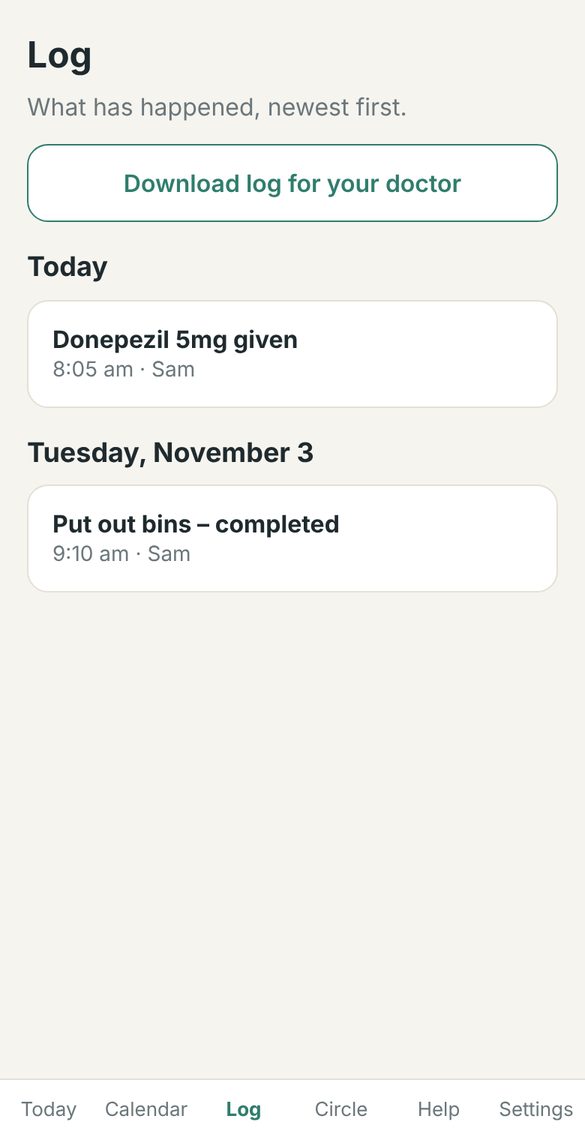
The Log is a record of everything the circle has done, newest first: doses given, tasks finished and changes made.
- Scroll down to see earlier days.
- Each entry shows what happened, when, and who did it.
- Tap Download log for your doctor to share a copy.
Tip: The Log is handy for handovers between carers, and for answering a GP's questions about the last few weeks.
Step 6
Your circle
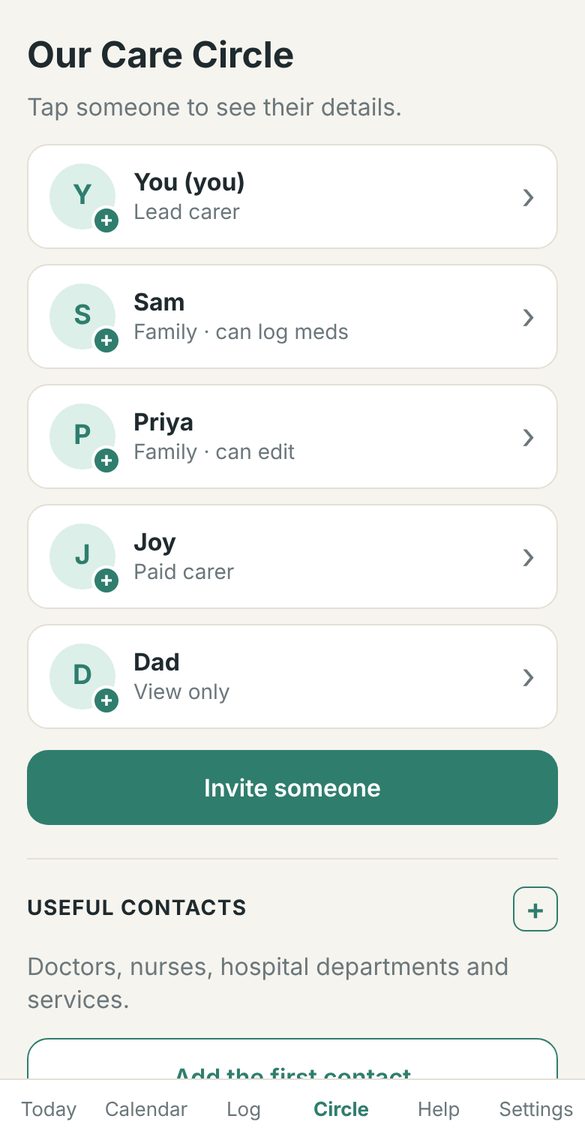
Circle shows everyone who helps, and what each person is allowed to do.
- Tap Invite someone to add family, friends or a paid carer.
- Give each person a role: can edit, can log meds, or view only.
- Tap a person to see or add their details, like their phone number, address and photo.
- Use Useful contacts to keep numbers for doctors, nurses and hospital departments.
Tip: Only the person who created the circle can invite or remove people.
Step 7
Help and support
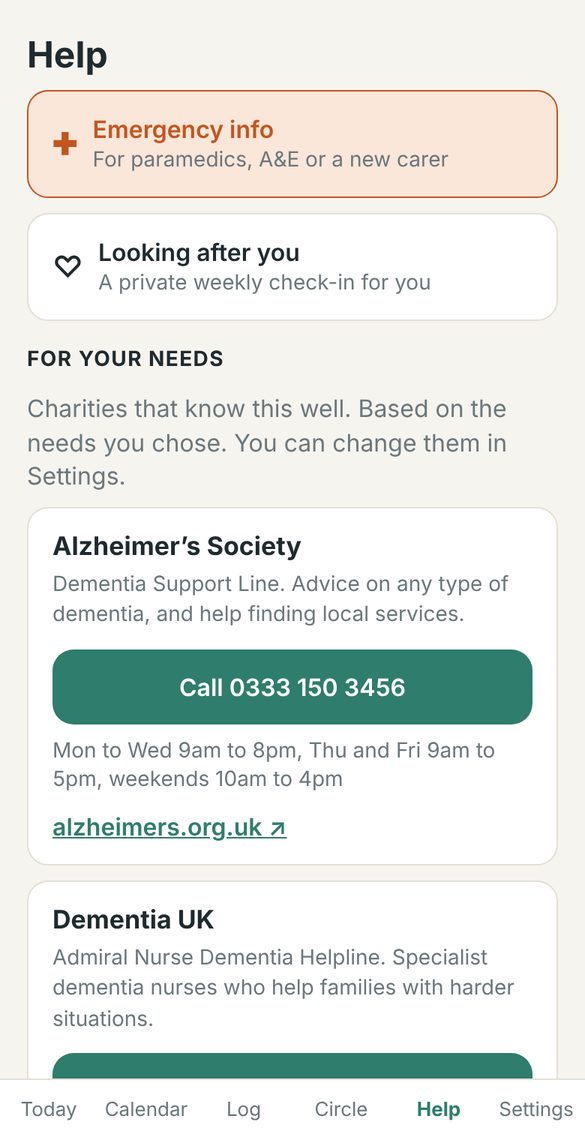
The Help tab brings together the support you might need, based on the needs you chose.
- Emergency info keeps key details for paramedics, A&E or a new carer.
- For your needs lists charities that know the condition well, with a button to call them.
- Benefits help explains money support, like Attendance Allowance, PIP and Carer's Allowance, with a simple checker to see what you might get.
Tip: The benefits guides are general information. Check gov.uk or speak to Carers UK or Citizens Advice before you claim.
Step 8
Looking after you
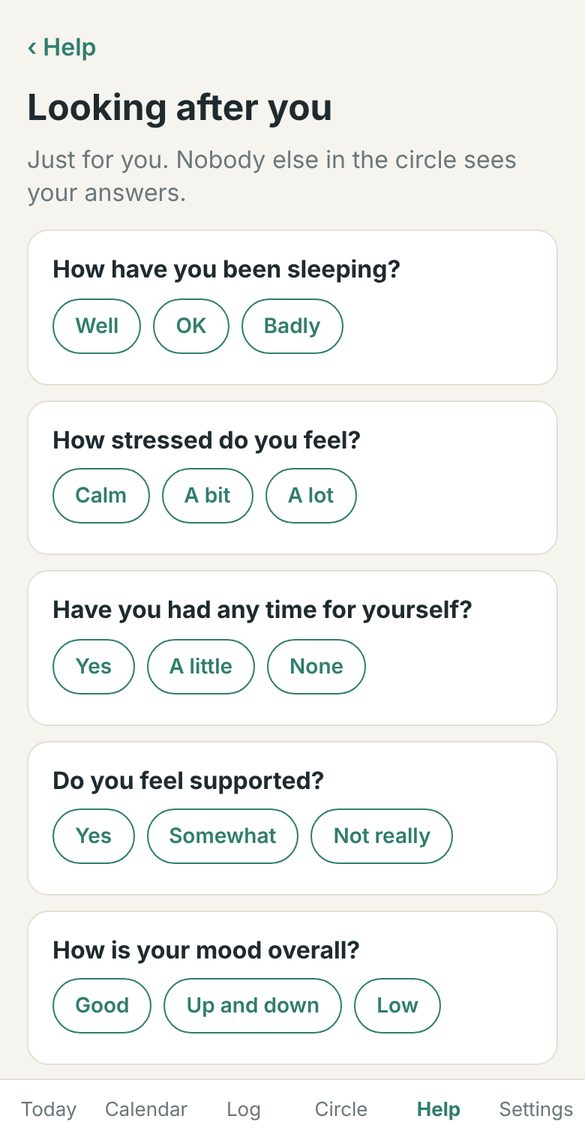
Caring is hard work. Looking after you is a short, private weekly check-in about how you are doing.
- Open it from the How are you doing? card on Today, or from the Help tab.
- Tap an answer to each question, like how you have been sleeping and how stressed you feel.
- Your answers are private. Nobody else in the circle can see them.
Tip: If you are struggling, Carers UK's helpline (0808 808 7777) offers free advice and support.
Step 9
Settings
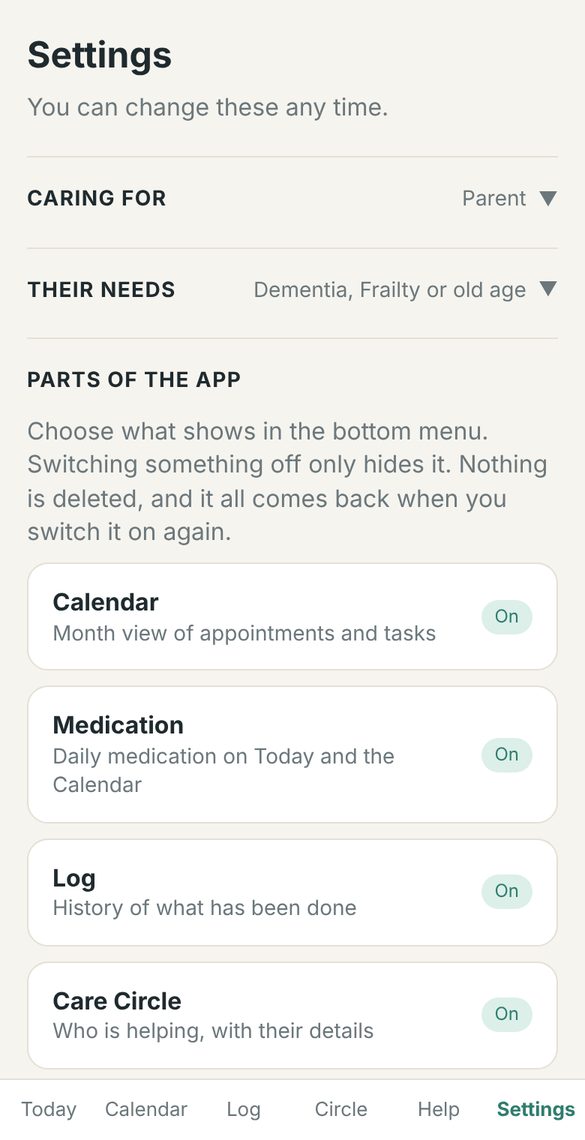
Settings is where you change your choices from the start, and switch parts of the app on or off.
- Change who you are caring for or their needs at any time.
- Under Parts of the app, switch each section on or off.
- Switching something off only hides it. Nothing is deleted, and it all comes back when you switch it on again.
Tip: This is also where you download your circle's information or delete your account.
Still stuck?
- Have a look at the common questions on our Support page.
- Or email us at info@skywardcollection.co.uk and a real person will help.